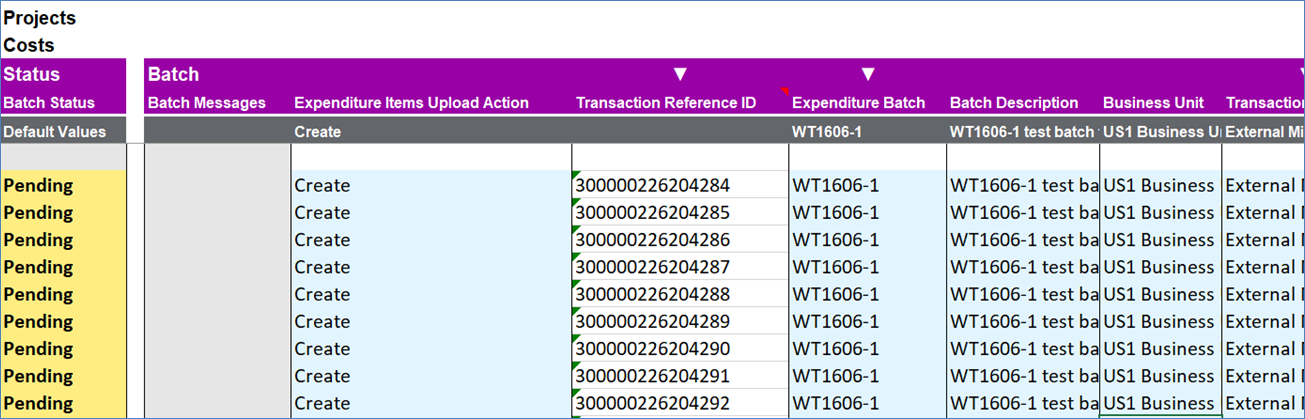
Once all the transaction details are on the sheet, they can be uploaded to the interface table. More information on how to upload records to Oracle can be found here. Clicking on the ‘Upload’ will trigger the Integrator validation as well as the Oracle REST Web Service validation. Once the transactions pass validation, they will be uploaded to Oracle. See section Error Handling and Validation for more information about validation. A successful upload of the transactions will be returned with the status of ‘Pending’ on the sheet along with the Transaction Reference ID.
Transaction Reference ID is a required value when you want to ‘Delete’ the Unprocessed Project Costs. This is covered in the section Deleting Unprocessed Project Costs.
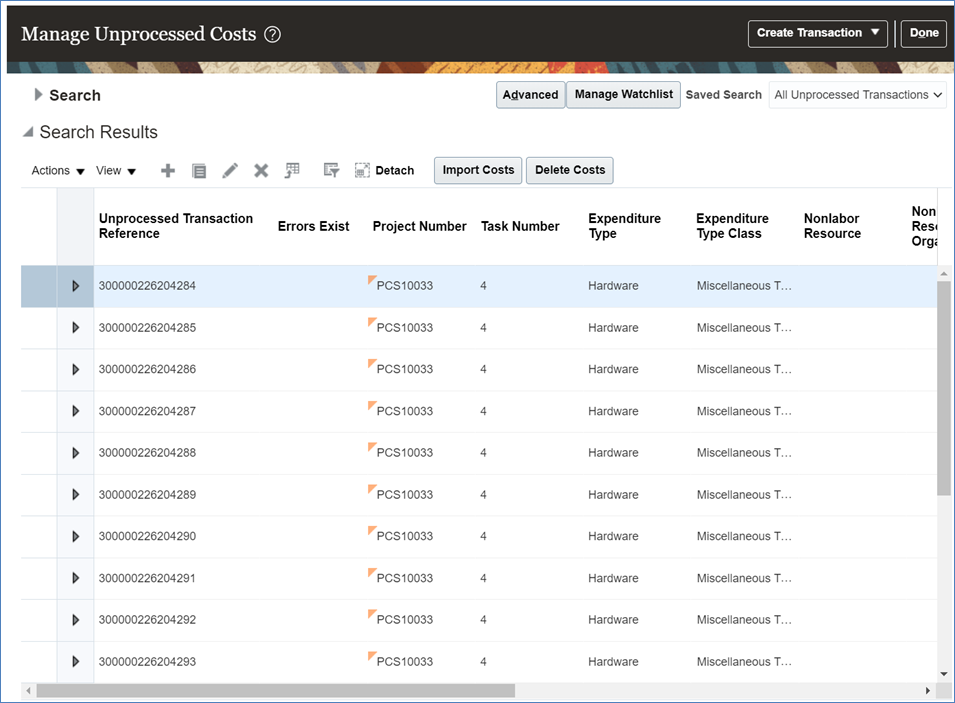
The following screenshot shows a list of Unprocessed Project Costs in the interface table.
Figure 1 shows the valid transactions with a returned status of 'Pending' and Transaction Reference ID column populated.
Figure 2 shows the Unprocessed Project Costs from the Costs Integrator uploaded to Oracle Cloud under Manage Unprocessed Costs.
Import the Batch through Oracle Cloud
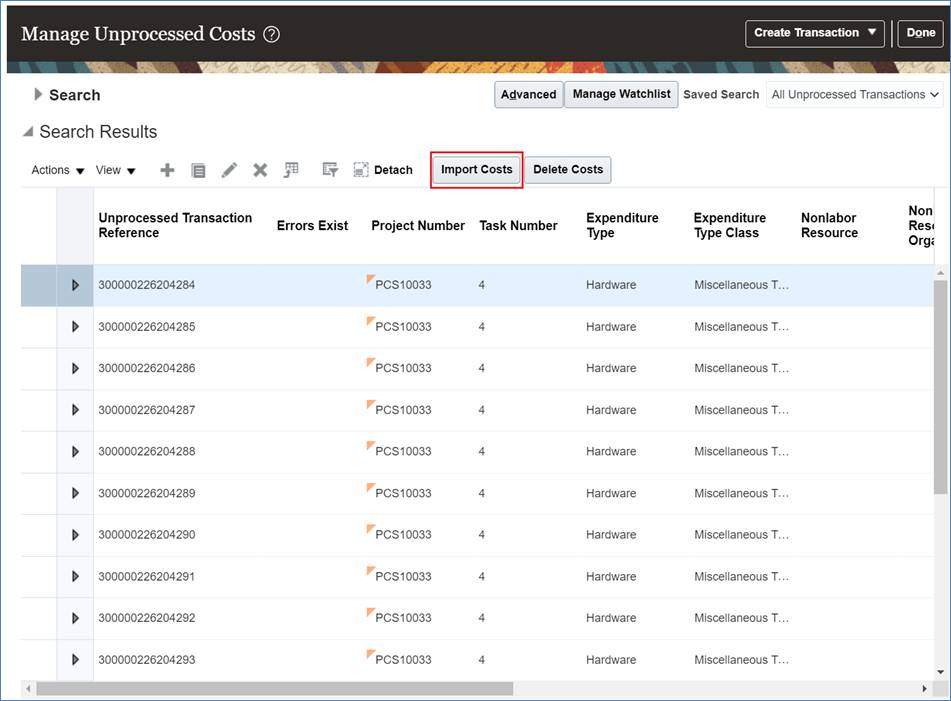
Login to the Oracle Cloud Costs area and submit the batch that was uploaded by the Costs Integrator to be processed. See below for relevant screenshots on how to Import Costs in Oracle Cloud.
There are two methods to submit the Import Costs process. The first one is via the Manage Unprocessed Costs screen which you will have access to if you have access to Costs. Click on the ‘Import Costs’ button above the table of the Unprocessed Transactions.
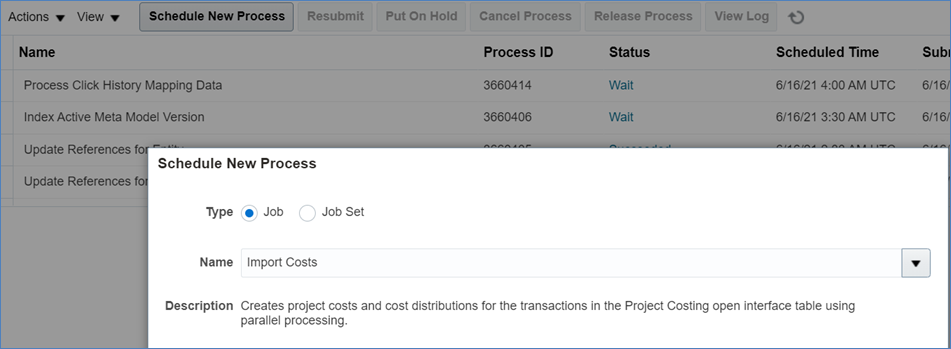
The second method is via the ‘Scheduled Processes’ icon from the Tools page. Click the ‘Schedule New Process’ button to enter the name ‘Import Costs’.
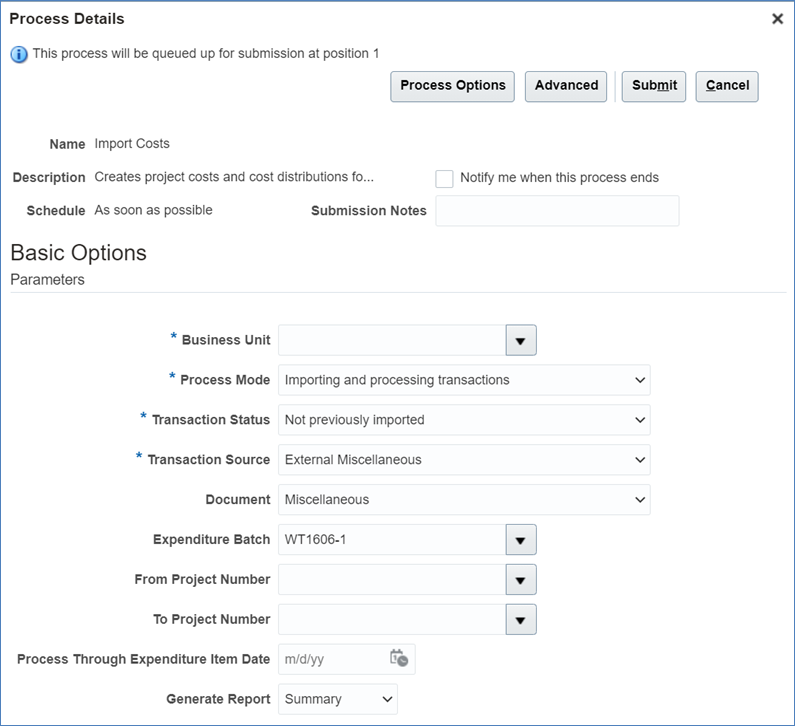
Click ‘OK’ and wait for the Process Details form to display. Enter the Expenditure Batch details of the batch you’d like to import and click the ‘Submit’ button.
Once the ‘Import Costs’ process is completed, return to the Costs Integrator to use the Refresh functionality. See section Refresh Import Results for more information on how to do this.