Case Scenario: How to add Branches to existing Banks
To create a new branch on an existing bank you should first either download or select your existing bank using the data entry form. This will ensure the correct ID’s exist in the worksheet and the bank information is written into the “Existing” Bank rather than the “New” Bank columns.
You can also create a new branch at the same time as creating a bank. They can be created together or separately.
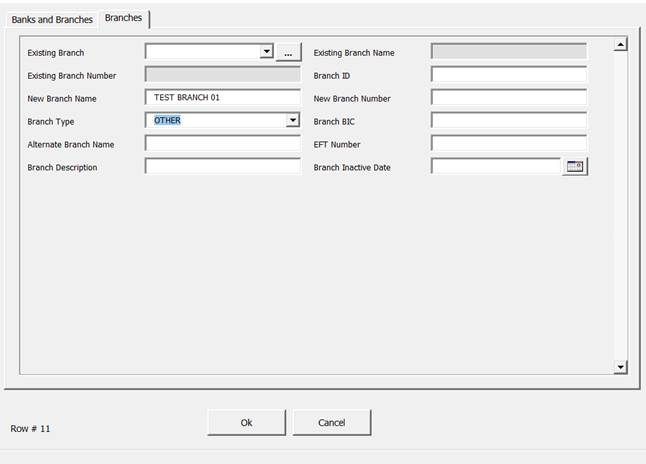
For a branch you must minimally provide a New Branch Name and Branch Type.
In this example I typed the Bank Name TEST BANK 1 into the Existing Bank column and the form validation completed the other details.
I then typed in the minimal details for the new Branch. You may also enter any other fields including New Branch Name, New Branch Number, Branch Type, Branch BIC, Alternate Branch Name, EFT Number and Branch Description.
Once uploaded the fields Existing Branch and Branch ID will be populated and you may go ahead and update any branch details on the same row if required.
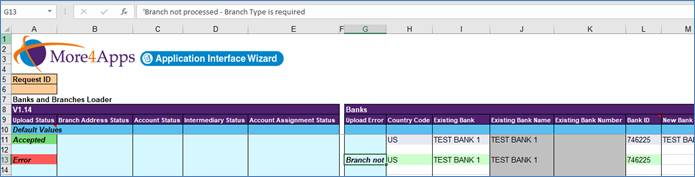
If I remove the Branch Type and attempt upload, the template will error as follows as Branch Type is a required field for the Oracle API call. “'Branch not processed - Branch Type is required”.